

SOP templates
Write each procedure once: a name, ordered steps, instructions, checklist items, due days and approval. Keep it as Draft while writing, set it Active to use it and Inactive to retire it without losing history.
ZenoxCRM SOP Management turns your standard operating procedures into reusable templates. Start an SOP on any Opportunity and ZenoxCRM copies its steps, assigns each step to the right person or team, tracks due dates, checklists and manager approvals, and sends reminders and escalations until the job is done.
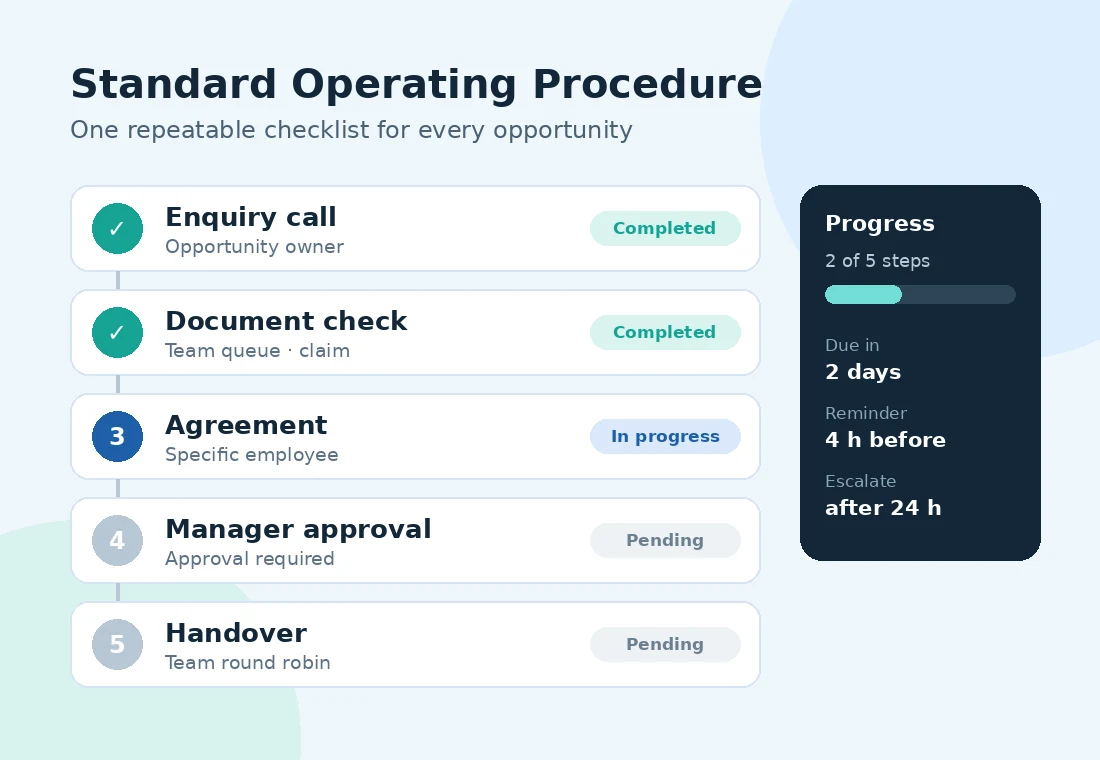
Most growing businesses run their processes from memory, WhatsApp groups and spreadsheets. Steps get skipped, nobody knows who has the work, and new staff learn by trial and error. With SOPs in ZenoxCRM, the process is written once and followed every time—on every customer, by every employee.
A typical SOP looks like this: Enquiry call (Opportunity owner) → Document check (Back-office team queue) → Agreement (Legal, with manager approval) → Handover. Only one step is current at a time; the next unlocks when the current one is completed and, if needed, approved.
Every part of how ZenoxCRM runs your standard operating procedures, explained.
Write each procedure once: a name, ordered steps, instructions, checklist items, due days and approval. Keep it as Draft while writing, set it Active to use it and Inactive to retire it without losing history.
Pick an active template on the Opportunity's SOPs tab and click Start. ZenoxCRM makes a private copy of the steps, so later template changes never disturb work already in progress.
Each step shows what to do and a list of tick-boxes. A step can be completed only when every item is ticked, so nothing is skipped.
Opportunity owner, a specific employee, the team member with the fewest open steps, team round robin, a team queue that anyone can claim, or manual assignment by a manager.
Mark important steps as needing approval. The employee completes the step, a manager approves it, and only then does the next step start.
Due dates count from when a step becomes current. Company-wide automation reminds before the deadline, flags overdue steps and escalates to the manager or team leader—and can move the step to them.
Each employee gets one place for their SOP steps: work the checklist and complete steps without opening the Opportunity, claim steps from the team queue, or put a step back.
Going on leave? Choose a cover and dates. Open steps move to the cover, new steps follow, and team rules skip the person while they are away.
Managers can assign or change the person on every unfinished step in one screen and save all changes at once. A started SOP can be removed and started again if needed.
Every change of person is recorded with the reason: assigned by rule, by a manager, claimed, released, covered while away or escalated.
Dashboard › SOPs shows started and completed SOPs, steps needing attention, team queues, bottleneck steps, workload per employee and a ZenoxAI summary. Step-wise progress shows how many Opportunities sit at each step—click a number to see them.
Separate permissions for SOP Templates, My SOP Work and the SOP Dashboard (view own or view all). Every SOP screen has a built-in “How does this work?” help card.
Any business with a repeatable process after the sale benefits from SOPs.
An SOP (Standard Operating Procedure) is a repeatable checklist your team follows the same way every time, such as customer onboarding or order handover. You build it once as a template and start it on any Opportunity.
Each step has an auto-assign rule: the Opportunity owner, a specific employee, the team member with the fewest open steps, team round robin, a team queue where the first person to claim it owns it, or manual assignment by a manager.
Yes. Tick Require manager approval on a step. After the employee completes it, a manager approves it before the next step starts.
ZenoxCRM can remind the assignee before the due time, notify them when it is overdue and escalate to their manager after the number of hours you choose, optionally moving the step to the manager.
No. Each started SOP keeps its own copy of the steps, so template changes apply only to SOPs started after you save.
Employees set an out-of-office cover. Their open steps move to the cover, and team rules skip them while they are away.
Tell us your process and we will show you how it runs as an SOP in ZenoxCRM.