

Navigating ZenoxCRM: menu, search and workspace controls
In short
ZenoxCRM opens with a menu on the left that lists every module you can use. Use the search box at the top of the menu to jump to a screen, the moon/sun button at the bottom to switch between light and dark theme, and the expand button for full-screen mode.
Sign in
- Open zenoxcrm.com/app in your browser.
- Enter the login details provided by your company administrator.
- After signing in, ZenoxCRM opens your dashboard.
Forgot your password or don’t have an account? Contact your company’s ZenoxCRM administrator.
The left menu
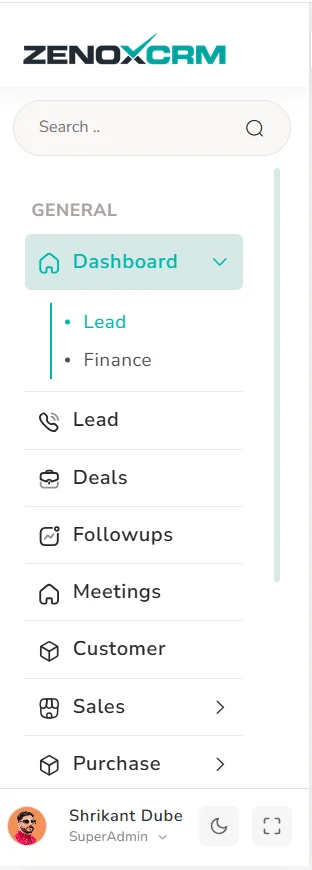
The left menu is how you move between modules. Items are grouped under GENERAL:
- Dashboard — expands to Lead and Finance dashboards.
- Lead, Deals, Followups, Meetings and Customer.
- Sales and Purchase — items with an arrow (›) expand to show more screens.
The screen you are on is highlighted in the menu. Click a highlighted item with a down-arrow to collapse or expand its sub-menu.
Search the menu
Type in the Search box at the top of the menu to find a screen quickly instead of scrolling through the menu.
Hide or show the menu
Use the ✕ button at the top-left edge of the page, next to the menu, to hide the menu and give the page more room.
Your profile, theme and full screen
At the bottom of the menu you will find:
| Control | What it does |
|---|---|
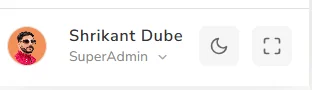
| Your name and role | Shows who is signed in and your role (for example SuperAdmin). Click your name for profile options. |
| Moon / sun icon | Switches between light and dark theme. |
| Expand icon | Turns full-screen mode on or off. |
Quick-access buttons
Two round buttons float at the bottom-left of the screen: a settings (gear) button and a WhatsApp button for quick access.
Questions about this screen.
Where do I log in to ZenoxCRM?
Go to zenoxcrm.com/app and sign in with the details provided by your company administrator.
How do I switch to dark mode?
Click the moon icon at the bottom of the left menu. Click the sun icon to switch back to light mode.
Can I hide the left menu?
Yes. Use the ✕ button at the top-left edge of the page to hide the menu and give more space to the screen.