

Lead Dashboard: leads, calls, talk time and meetings
In short
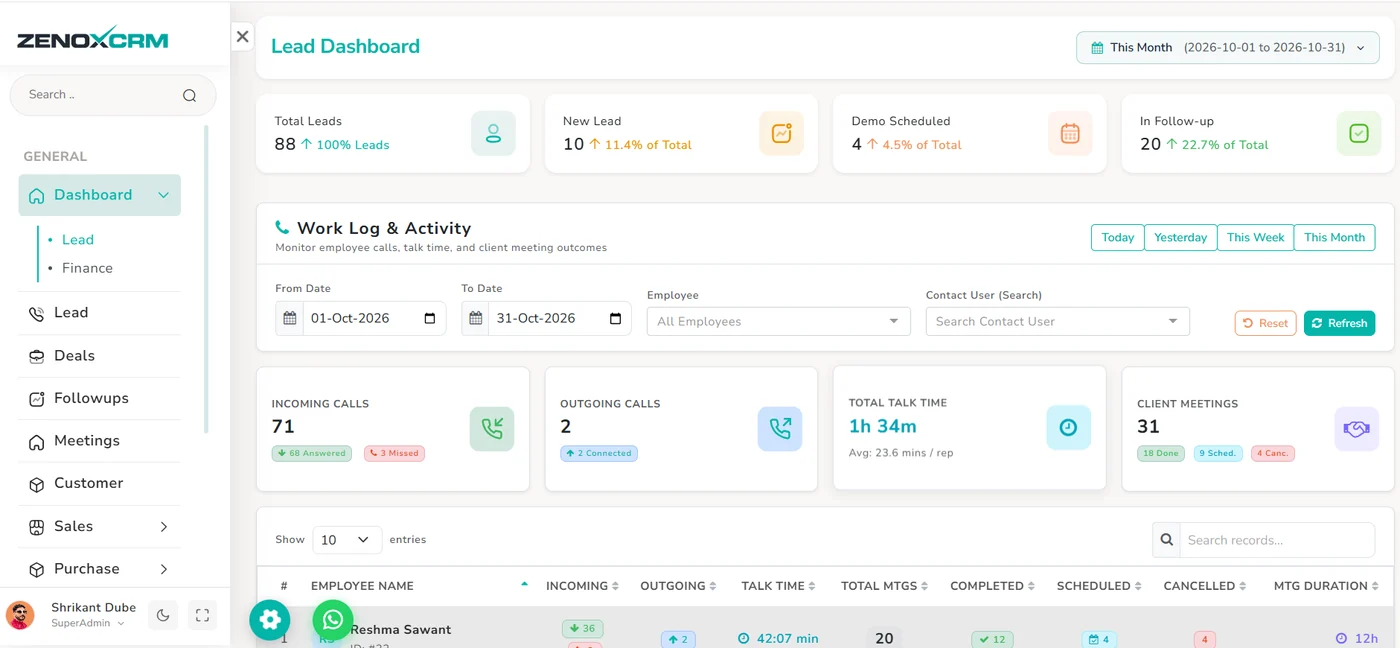
The Lead Dashboard shows your lead pipeline for a chosen period (total leads, new leads, demos scheduled and follow-ups) and a Work Log & Activity report of incoming and outgoing calls, talk time and client meetings, broken down by employee.
Open the Lead Dashboard
- In the left menu, click Dashboard.
- Click Lead.
The page title shows Lead Dashboard.
Choose the period
The period selector at the top-right controls the lead summary cards. It opens on This Month and shows the exact dates, for example 2026-10-01 to 2026-10-31.
- Click the period selector.
- Choose the period you want to see.

Lead summary cards
Four cards summarise your leads for the selected period:
| Card | What it shows |
|---|---|
| Total Leads | All leads in the period (shown as 100% of leads). |
| New Lead | Leads still marked new, with their share of the total. |
| Demo Scheduled | Leads with a demo scheduled, with their share of the total. |
| In Follow-up / Qualified Leads | Leads in follow-up or qualified, with their share of the total. |
Example: if Total Leads is 88 and New Lead shows 10, the card shows 11.4% of Total.

Filter the Work Log & Activity
The Work Log & Activity section monitors employee calls, talk time and client meeting outcomes. It has its own filters:
| Filter | How to use it |
|---|---|
| Today / Yesterday / This Week / This Month | One-click date ranges. |
| From Date and To Date | Pick a custom date range with the calendar. |
| Employee | Show All Employees or choose one employee. |
| Contact User (Search) | Search for a contact to see activity for that contact. |
| Reset | Clears your filters. |
| Refresh | Reloads the figures with the current filters. |
- Click a quick range such as This Week, or set From Date and To Date.
- Optionally choose an Employee or search a Contact User.
- Click Refresh.

Activity cards
| Card | What it shows |
|---|---|
| Incoming Calls | Total incoming calls, split into Answered and Missed. |
| Outgoing Calls | Total outgoing calls and how many were Connected. |
| Total Talk Time | Combined talk time, and the average minutes per rep. |
| Client Meetings | Total meetings, split into Done, Scheduled and Cancelled. |

Employee activity table
Below the cards, a table lists each employee’s activity for the selected period.
| Column | Meaning |
|---|---|
| Employee Name | The team member. |
| Incoming / Outgoing | Calls received and made. |
| Talk Time | Total time on calls. |
| Total Mtgs | Meetings in the period. |
| Completed / Scheduled / Cancelled | Meeting outcomes. |
| Mtg Duration | Total time spent in meetings. |
- Sort: click a column heading (marked ⇅) to sort by it.
- Search: type in Search records… to find an employee.
- Rows per page: change Show 10 entries to see more rows.

Questions about this screen.
Why do the lead cards and the activity cards show different periods?
The lead summary cards follow the period selector at the top of the page, while the Work Log & Activity section has its own date filters. Set both to the same period to compare them.
How do I see one employee’s calls and meetings?
In Work Log & Activity, choose the employee in the Employee filter and click Refresh.
How is average talk time calculated?
Total Talk Time shows the combined talk time for the selected period, and the average minutes per rep below it.